After Apple released the first developer beta of iOS 14, many users may have upgraded.
But in reality, developer beta systems are often accompanied by a variety of issues that are less suitable for everyday use.
What should you do if you've updated to iOS14 and then regret it and want to downgrade to iOS13?
Here cnTechPost tells you how to downgrade from iOS 14 to iOS 13 while retaining your data.
Preparation
For iOS 13 firmware, visit the below address and download the right firmware for your device.
The current latest firmware is iOS 13.5.1.
MFi Certified Cable
Computer (both PC and Mac available)
Steps
Open iTunes, connect your iPhone to your computer, and then make a full backup of your device.
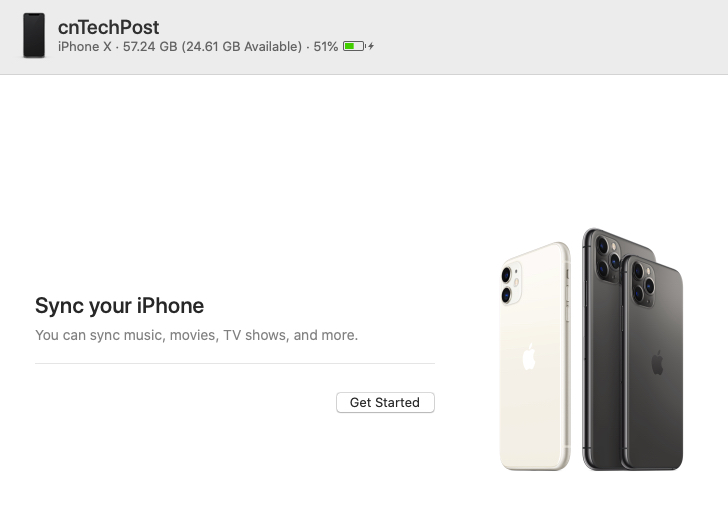

Once the backup is complete, perform a downgrade.
Note: The latest macOS systems have integrated iTunes functionality into Finder.
If you're using a Windows computer, hold down shift and click the Check for Updates button.
If you are using a Mac computer, press and hold Option key, and then click the Check for Update button.
Select the .ipsw format firmware file you just downloaded, and click Update.

At this point, iTunes will automatically downgrade your device to iOS 13.

Do not disconnect your phone from your computer during the process.
Wait a few moments and iTunes will automatically downgrade your device to iOS13, and you will be prompted when the upgrade is complete.